
CASTING DIRECTOR: How do I use the Status Page?
This article guides you through the Status Page, which serves as the command center for each Schedule attached to your Project. It covers how to access the page, manage talent, and utilize the communication tools available.
How do I access the Status Page?
To access the Status page, your Project must have a previously created or sent Schedule. From your home Projects page, click on the Schedules tab.
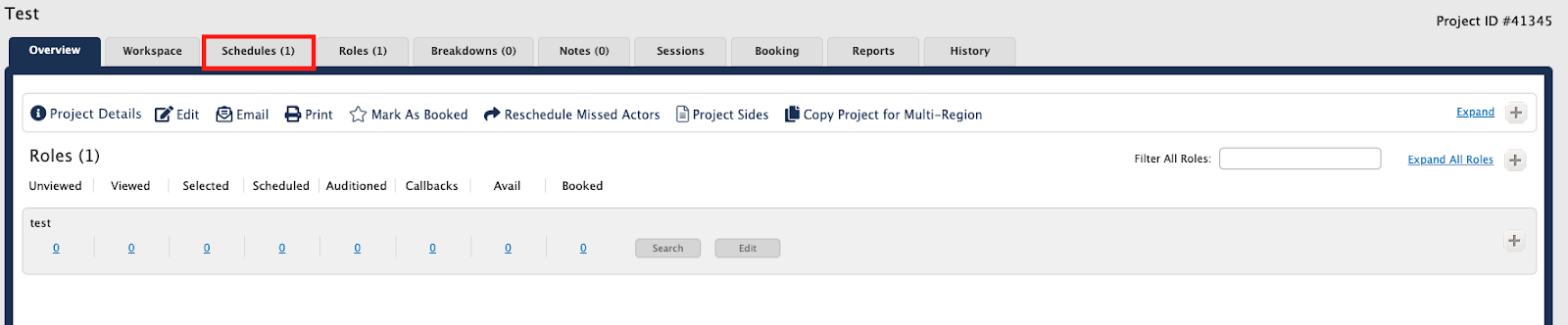
Locate a Schedule on this page and click the Status Page button.

The Status Page consists of Options buttons at the top, an interactive Schedule with Live Chat in the center, and a sidebar to the right.
What options are available in the top menu?
At the top left, you will see the name of the Project and the Schedule being displayed. Below these are the Options buttons.
Return to Overview: Returns you to the Project Home Page.
Return to Schedules: Returns you to the Schedules Page to access, edit, or create schedules.
Send Message: Allows you to send bulk messages to scheduled Talent directly from the Status Page.
Edit Schedule: Takes you to the Edit Schedule page.
Print: Allows you to print your schedule with a variety of options and formats.
Send Times/Resend Times: Takes you to the Send Times page so you may send or resend your schedule.
Pending Notifications Indicator: Alerts you to a pending chat from an agent. Click the red X to clear these notifications.
Search Bar: Located to the right of the Options buttons, this allows you to search for specific Talent on a Schedule.
New Times/Changed Times Indicators: Located above the Search bar. If there have been any changes to your schedule since you last sent it out, they will appear here as a reminder.
Hide Sidebar: Hides the tools and options in the right sidebar to expand the view of the Status Page schedule.
How do I use the Sidebar tools?
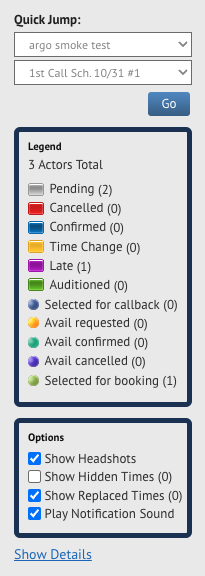
Quick Jump: Takes you to the Status Page for any Project and any Schedule associated with that Project.
Legend: Provides the Status of all Talent associated with the Schedule.
Show Headshots: Toggles the display of Headshots on the Status Page on or off.
Show Hidden Times: Displays Talent times that have been hidden.
Show Replaced Times: Displays Talent whose times have been replaced.
Show Details: Provides any notes or Role details.
How is the Schedule organized?
The Schedule on the Status Page is broken into multiple columns to organize talent information.
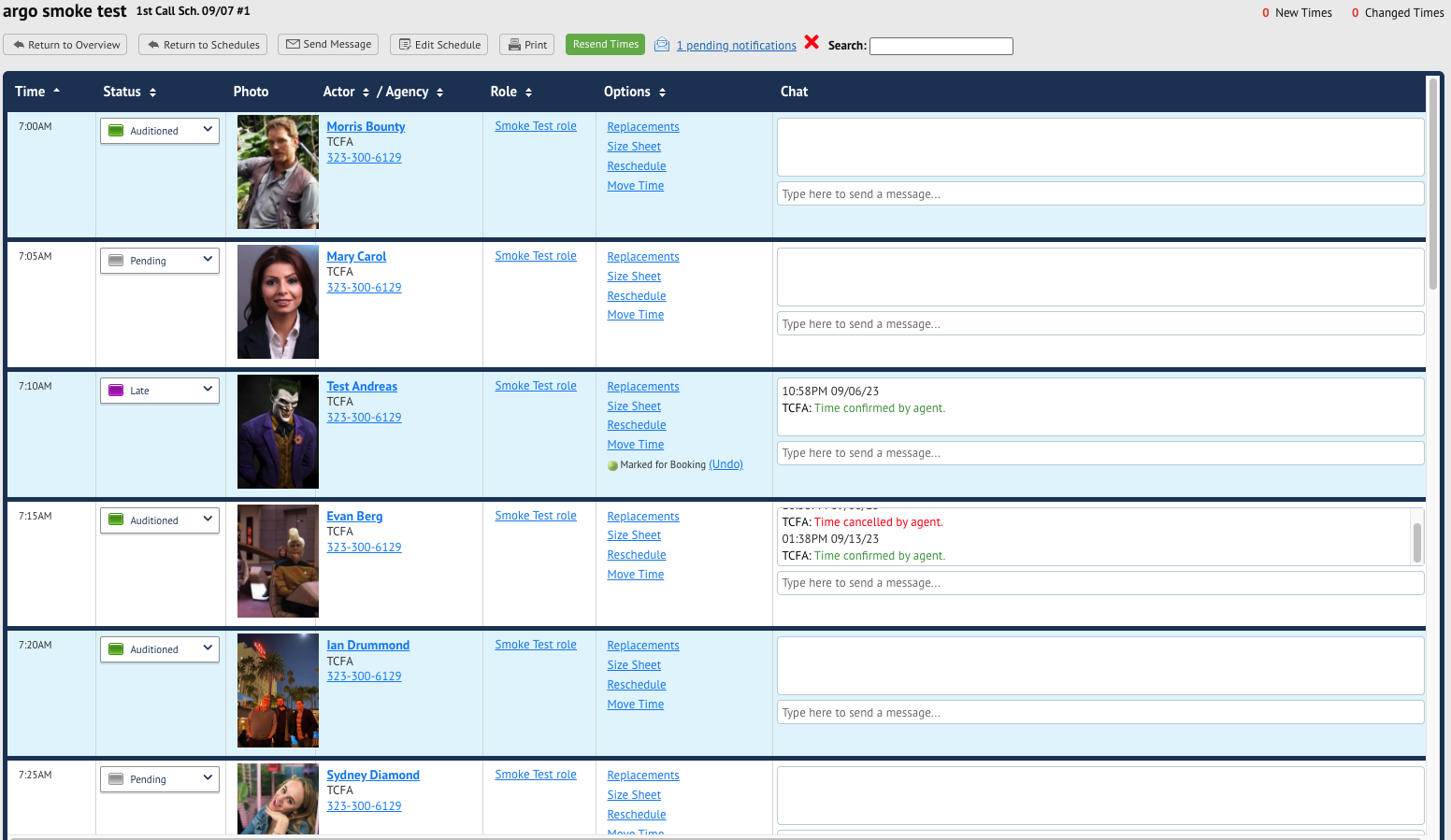
Time: Displays the time the Talent has been scheduled for.
Status: Displays the Talent’s current Status. Click the dropdown menu for any Talent’s status to change it or make special requests, such as an Avail.
Photo: Displays the Talent’s current headshot.
Actor/Agency: Displays the Talent’s name and representing agency.
Role: Lists the Role the Talent is auditioning for.
Options: Provides options to select Replacement Talent, view Talent Size Sheets, Reschedule a Talent, or move a Talent to a different available timeslot.
Chat: Keeps a record of any chat messages between you and the Talent’s submitting agency.