CASTING DIRECTOR: How do I share video submissions with clients?
This article explains how Casting Directors share video submissions with their clients by creating a dedicated auditions page. This walks you through how to select talent, generate a session link, and send that link via email so your team can review auditions quickly and easily.
Selecting Talent and Videos
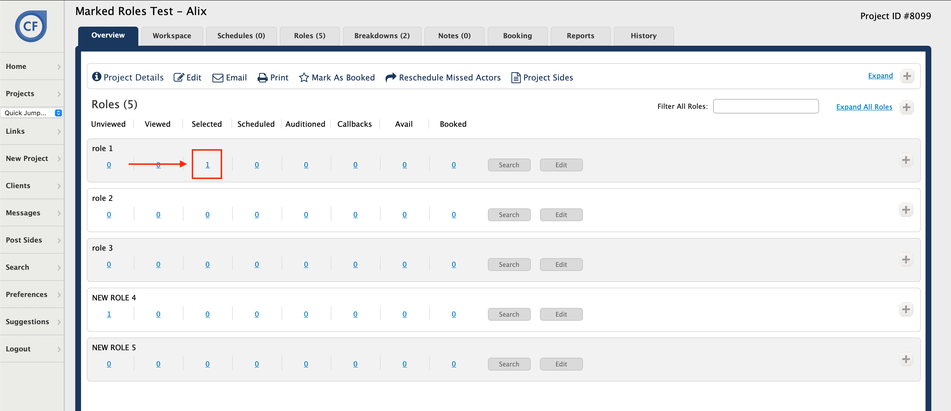
Open the desired active project.
Click on the number for the specific role to advance to the bin page for that role.
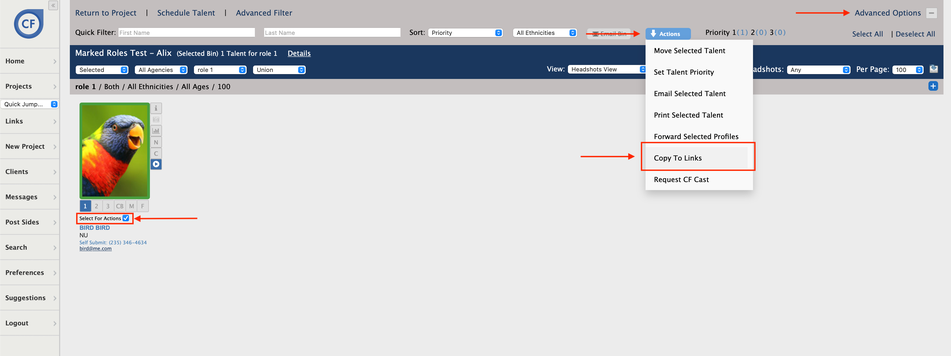
Click on Advanced Options to expand the available menu options.
Click the checkbox next to the desired talent labeled Select for Actions to choose the talent you want to share.
Click the blue Actions button.
Click on Copy To Links from the dropdown menu.
Creating a Session Link
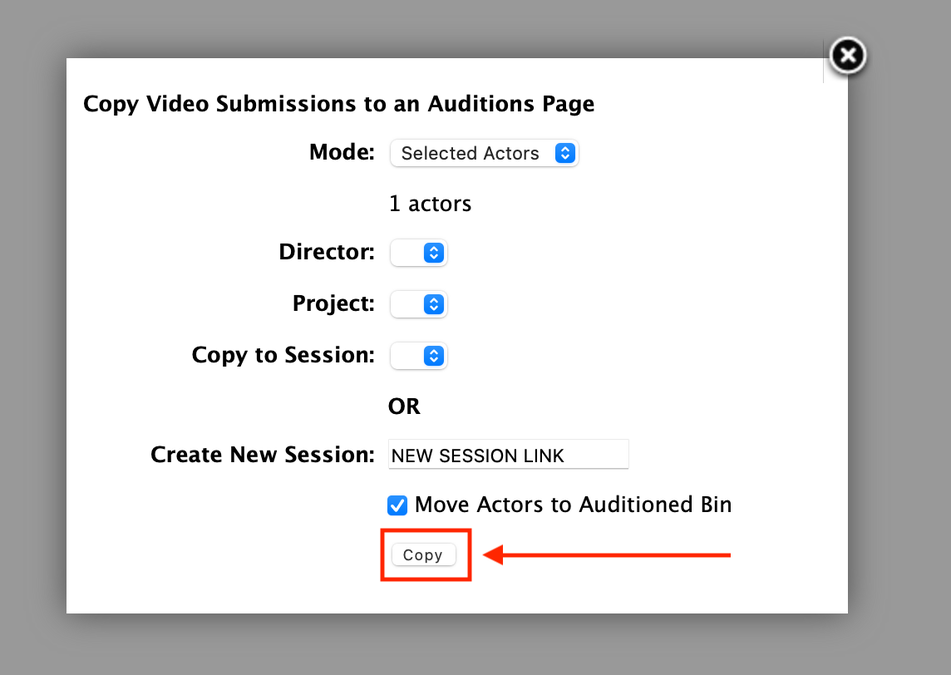
The Copy Video Submissions to an Auditions Page modal will pop up on your screen.
Select your desired options for the link.
Enter the name for the session in the Create New Session text field.
Click the Copy button.
Afterward, you will be returned to the bin page for that role.
Sending the Link to Clients
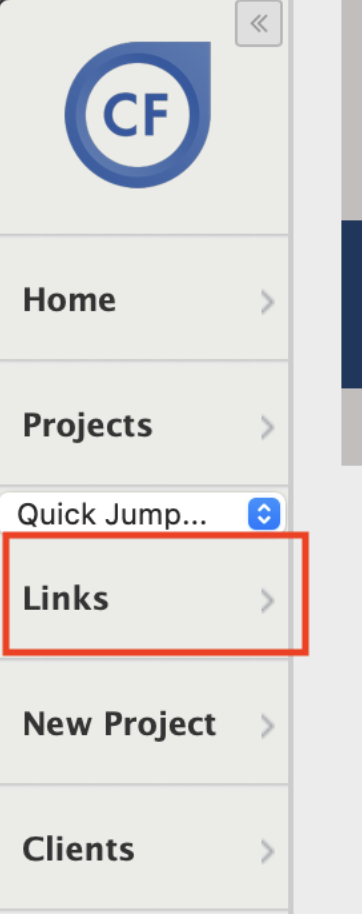
Click on the Links item from the left-hand side menu to open the Casting Director Admin page.
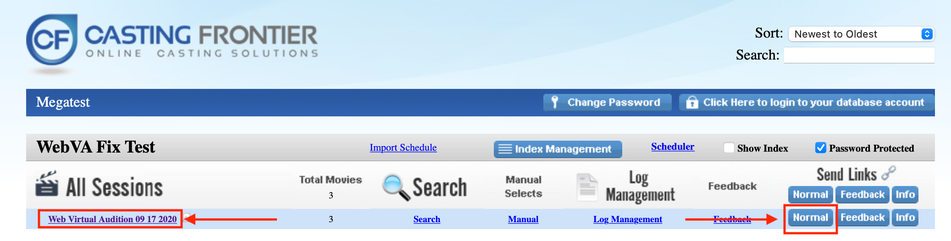
Identify the project you are currently working on.
Click on the Session Name you just created. This opens the preview page that the client will see, which you can use to test and verify the functionality.
Click on the blue Normal button to open the send email modal.
You can either click the Open in Mac Mail button to use your default email client or copy and paste the text in the Email: text field into any email service you prefer.
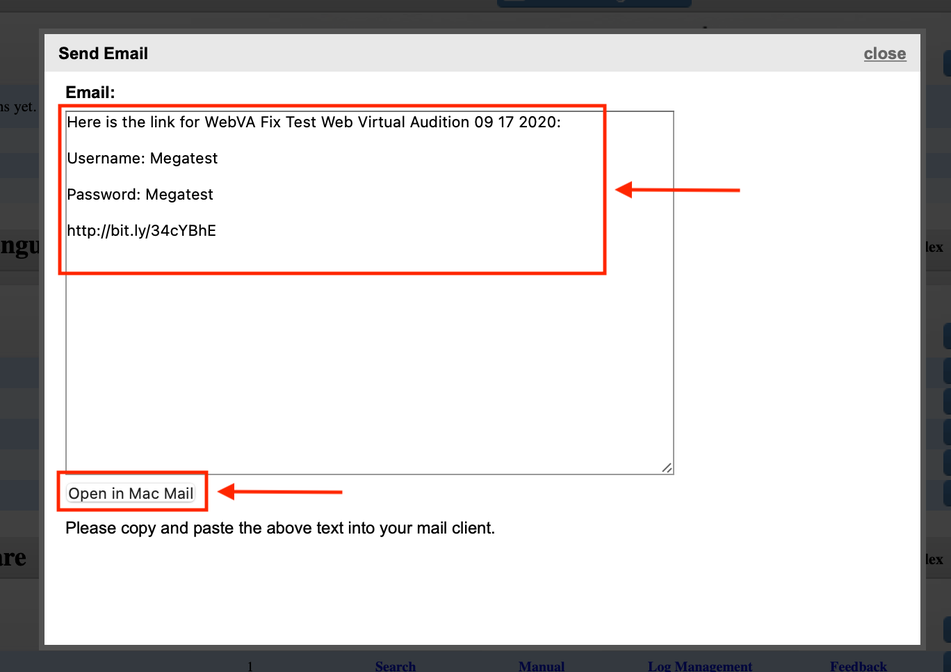
Note: Always double-check your session name before sending to ensure your client receives the correct organized link.