
CASTING DIRECTOR: How do I manage talent videos?
This guide will help you navigate the video playback tools. We will cover how to find specific talent clips and the steps to take when you need to make room for fresh submissions to ensure your project stays organized.
How Do I View Talent Videos?
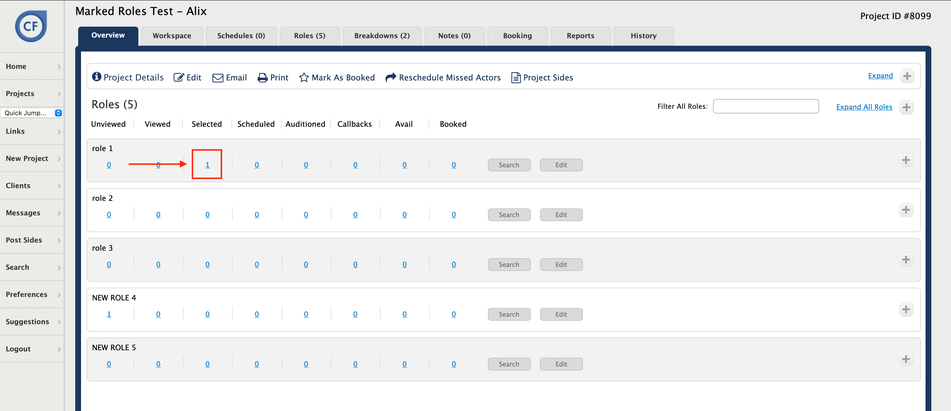
Open the active project you wish to view.
Click on the number associated with the specific role to advance to the bin page for that role.
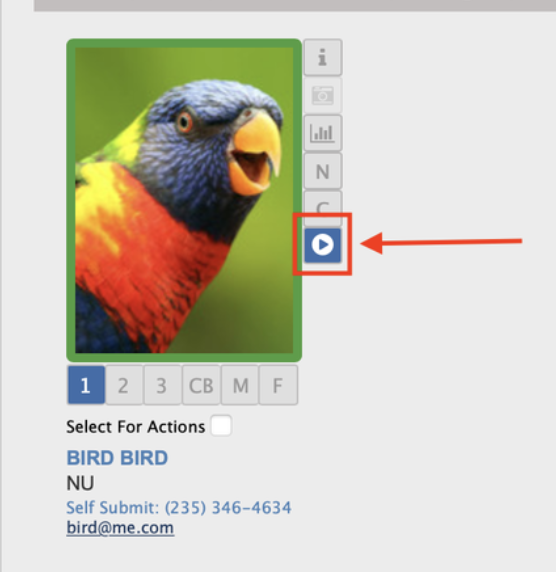
Identify the talent whose videos you need to manage.
Click on the Blue playback arrowhead to open the video playback window for that talent.
How Do I Manage Video Limits and Overwrites?
Keep in mind that talent can only have a maximum of 5 videos per role on any given project. If you find you need more space, follow these steps:
To request an additional self-tape or upload one on behalf of the talent, you must first free up a slot.
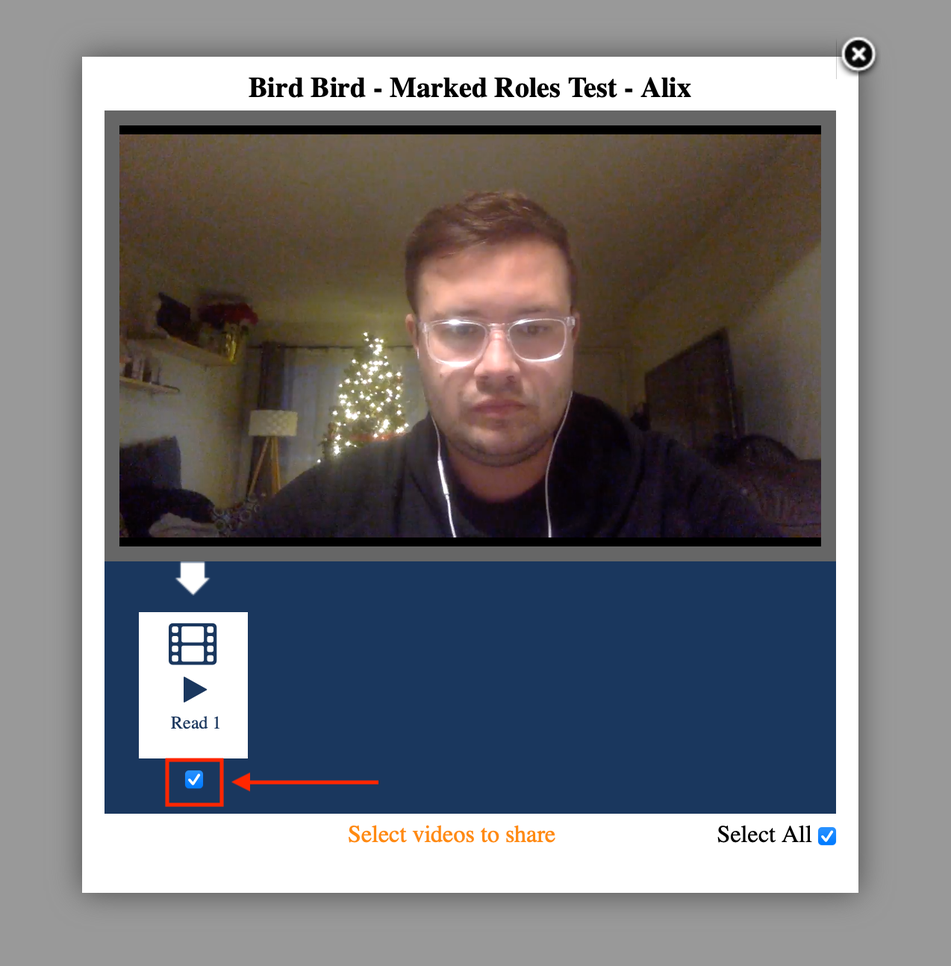
Uncheck the checkbox underneath the specific take (Read #) that you wish to be overwritten.
Once the box is unchecked, you can proceed with requesting or uploading the new self-tape.
FAQ
What is the maximum number of videos a talent can have per role?
A talent is limited to 5 videos per role on a project.
Can I upload a video for a talent if they have already reached their limit?
Yes, but you must first uncheck the box under an existing take to allow the system to overwrite that slot with the new video.