
CASTING DIRECTOR: How do I select talent?
This article explains the process of selecting talent from unviewed bins to prepare for scheduling.
How do I navigate to my project bins?
To begin picking your talent, you first need to head to the right spot in your project dashboard.
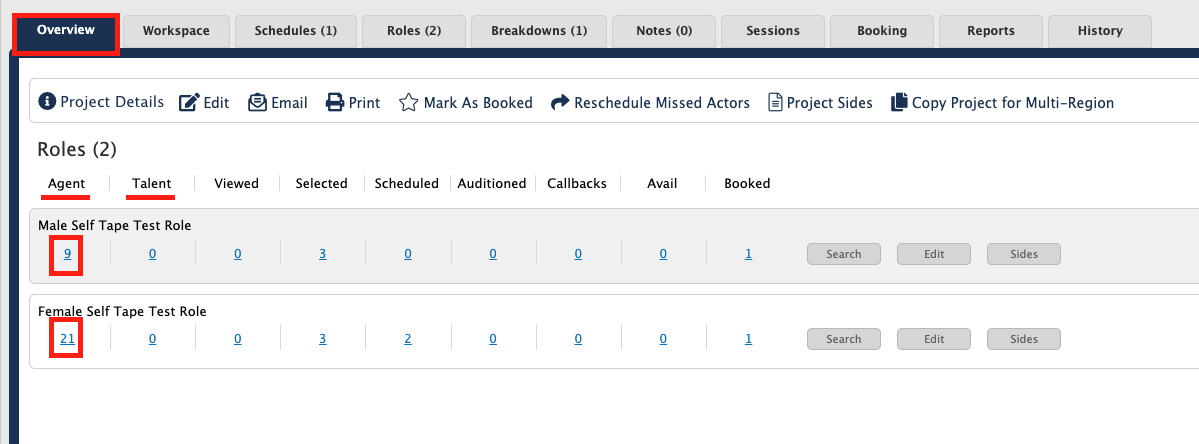
Navigate to the Project Overview tab of the project you are working on.
In this view, you will see all the available roles within your project.
Click on either the unviewed Talent or Agent bin to start looking through your submissions.
How do I select talent and use selection tags?
Once you are inside the bin, you can see everyone who has submitted for the role. When you find someone you like, use the selection tags to stay organized.
Review the talent submissions to decide who you would like to move forward with.
Choose a selection tag number (1, 2, or 3) to mark your talent.
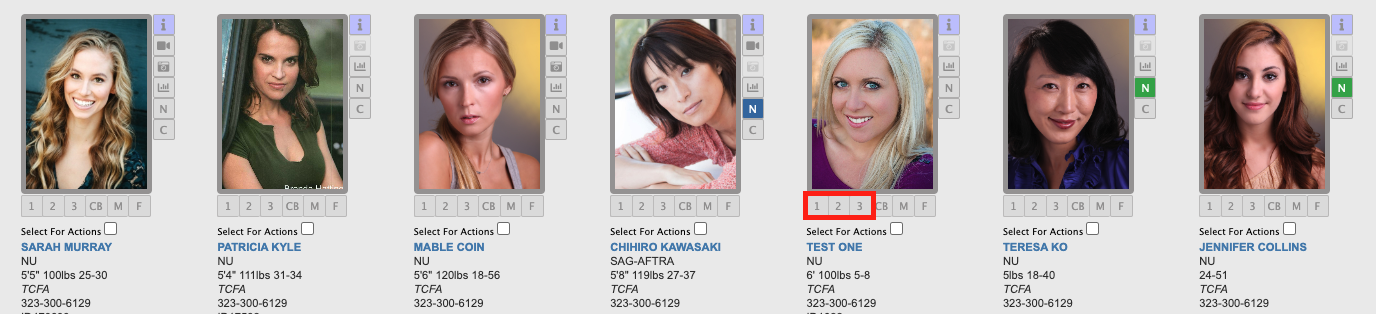
Keep in mind that these selection tag numbers are purely for your own internal organization. This number will not be sent to the Rep or the Talent.
Once you have finished selecting all your desired talent, you are officially ready to start scheduling your project!