
TALENT REPRESENTATIVE: How Do I Edit a Talent Profile?
This article will walk you through the steps of editing talent profiles from your talent roster. It is designed to help talent representatives quickly locate and update essential information, media, and credits for their talent to ensure profiles remain accurate and competitive.
How to Edit a Talent Profile
Navigate to the Search tab on the left-hand side of the screen. From here, you can view your full talent roster by selecting View All Talent.
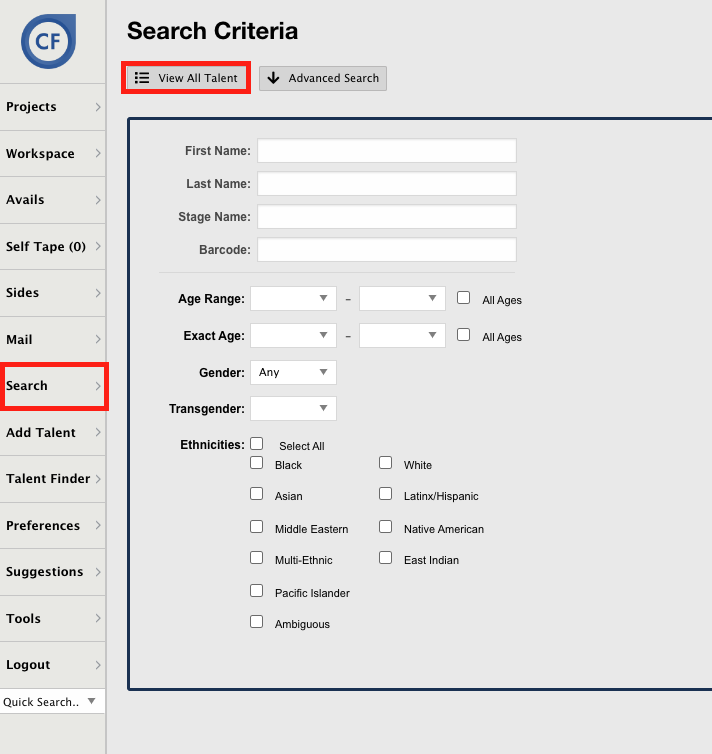
You can also search for a specific talent by using the First Name and Last Name search bars instead of selecting View All Talent.
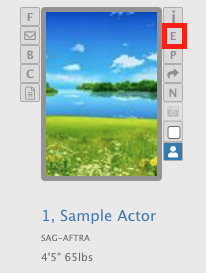
Once you have located the talent profile you need to edit, select E (for Edit) on the right side of the talent baseball card.
After making your changes, please always remember to SAVE before moving to another tab.
Profile Edit Tabs
Once you are in the Edit Profile screen, you can navigate through several tabs to manage specific details:
Info Tab
Use this tab to update the core details of your talent, including:
Personal Data
Clothing Size
SAG Information
Gender and Nationality
Physique
Departments
Media and Credits
Headshots: Add new talent headshots or edit current ones depending on the talent membership.
Resume: Add and edit your talent's credits.
Skills: Add special skills and set them to a specific level (A=Beginner, B=Intermediate, C=Advanced).
Links and Media: Add specific URLs to videos and social media pages connected to your talent.
Logistics and Availability
Lifestyle: Add information about what your talent is willing to do or can offer for auditions, such as a willingness to change hair color or possession of a specialized wardrobe.
Bookout: Set specific bookout dates for your talent.
Conflicts: Add product conflicts and their relevant timelines.
Reporting
Reports: View the projects for which you have submitted your talent. You can also print this page or send it directly to your talent for their records.