
TALENT: How Do I Upload a Photo to My Account?
This article provides step-by-step instructions for talent on how to upload and manage headshots on their Casting Frontier profile. Whether you are adding a new photo or replacing an existing one, these steps will help you keep your portfolio up to date for casting directors.
How to Upload a New Photo
Keeping your headshots current is one of the best ways to stay competitive. Follow these steps to add a new image to your account:
Click on the Edit Headshots button on your Home page.

Click on the Add Photo button under a blank headshot space.
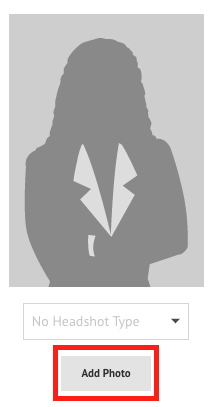
Click on Choose File, and select a photo to upload from your device.

Once uploaded, click on the image to crop it however you like. When you have adjusted the crop outline, click on the blue Crop button.
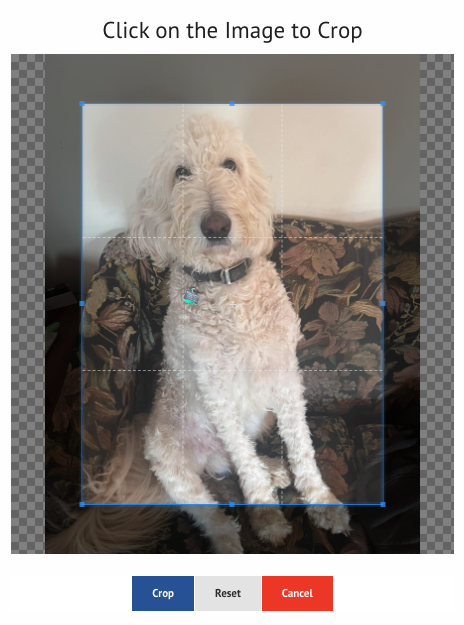
The photo will then be uploaded to your account!
Replacing Photos on a Basic Membership
If you are currently on a Basic membership, your account is limited to one displayed photo. To update your look, you will need to replace your current image:
You will need to click on the Replace button since only one photo can be displayed at this membership level.
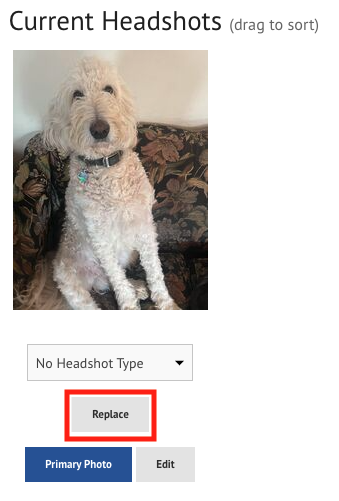
After cropping your new image, you will be taken to the checkout page for the Photo Swap fee to finalize the update.