CASTING DIRECTOR: How do I share selected talent profiles with clients?
This article explains how to forward specific talent profiles directly from the "Selected" bin to an external client via email. This ensures your clients review only the talent you want them to see.
Sharing Selected Profiles
Once you have narrowed down your talent pool, follow these steps to share them:
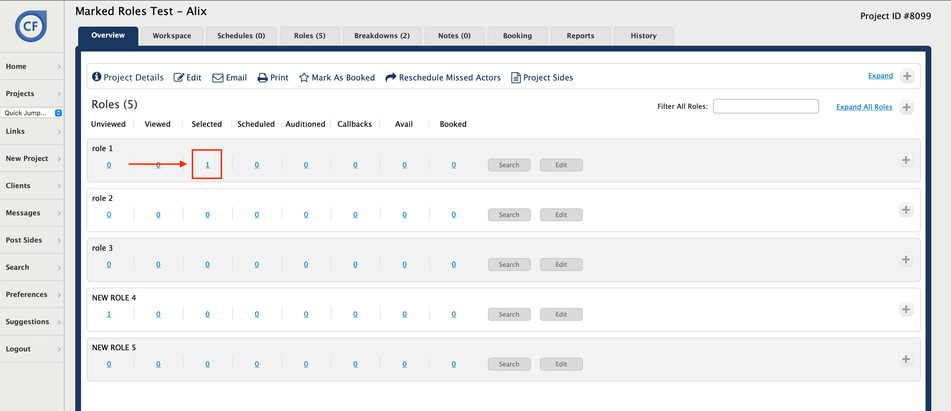
Log in to your account and open the desired active project.
Click on the Selected bin for the desired role to view the talent inside.
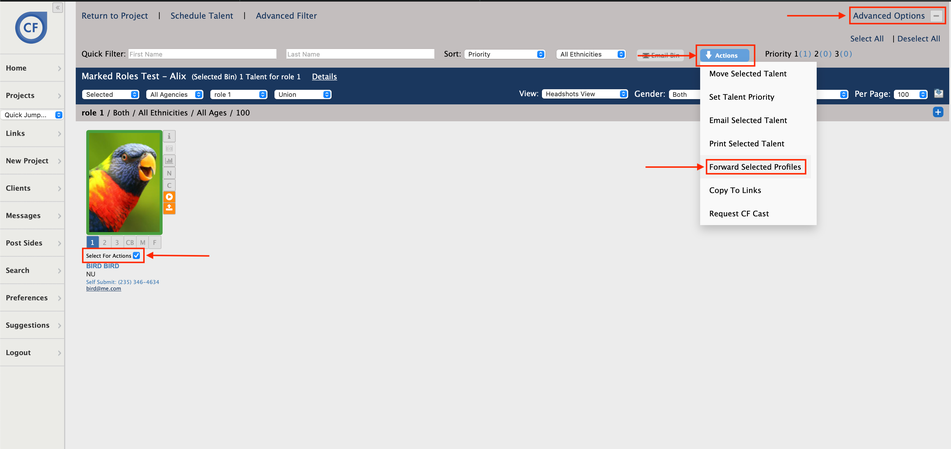
Click on Advanced Options to expand the menu.
Check the box labeled Select for Actions to select the desired talent (or select individual checkboxes next to specific talent names).
Click the blue Actions button.
Select Forward Selected Profiles from the dropdown menu.
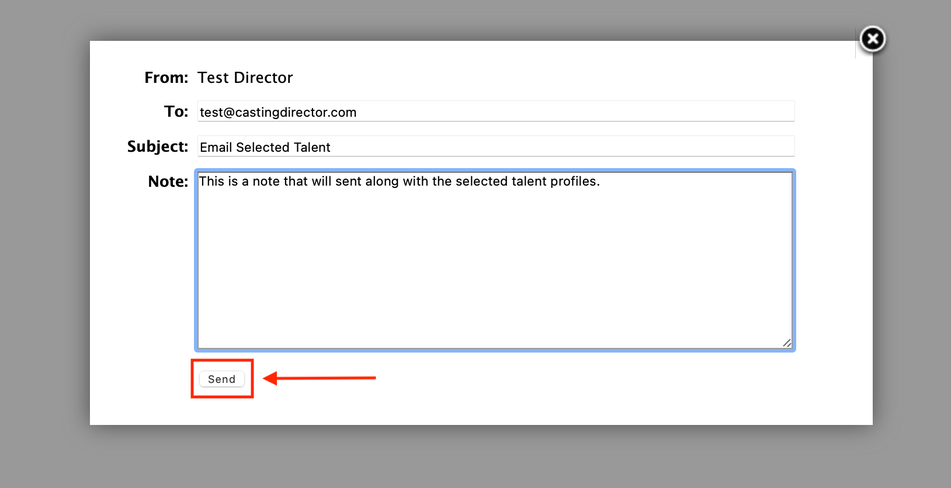
In the To: field, enter the email address(es) for the recipient(s).
In the Subject: field, enter a subject line for the email.
Add any additional notes in the Note: field (these will appear in the body of the email).
Click the Send button.