
CASTING DIRECTOR: How do I request self-tapes?
This article explains the two methods for requesting self-tapes from talent. You can request tapes while initially creating a role or send a request later from your selects bin.
Requesting while creating a role
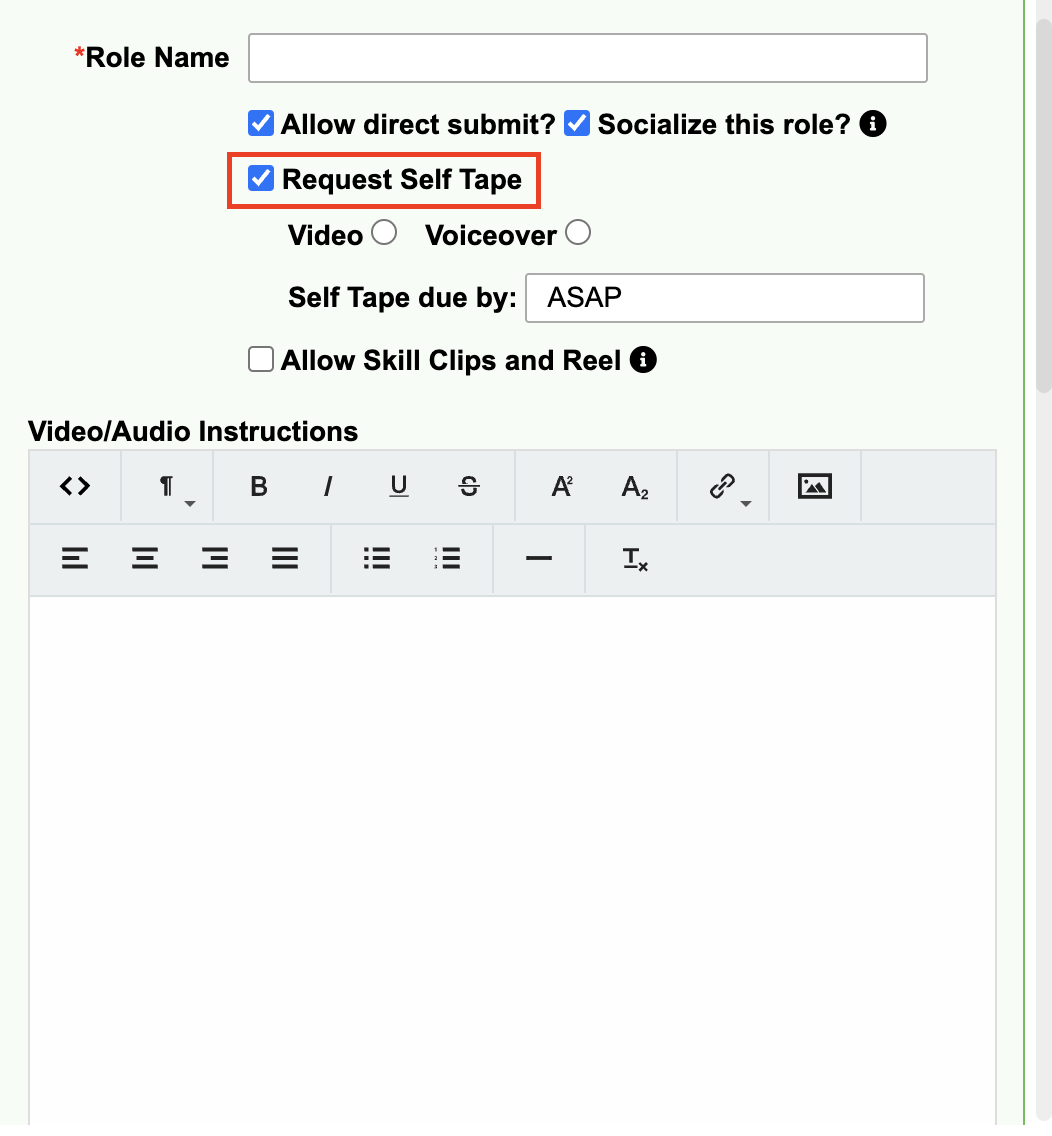
You can set up the project so talent can add a self-tape immediately when they submit. To do this:
Create a role for the project.
Select the Request Self-Tape check box.
Requesting from the Selects Bin
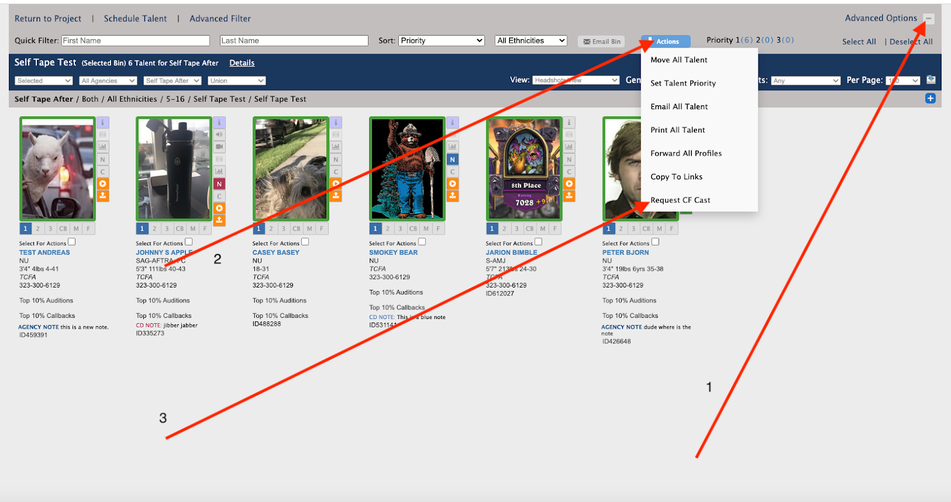
If you want to request tapes from specific talent after they have submitted, you can do so from the selects bin:
Enable Advanced Options.
Select the talent you want to receive a request.
Click on the Actions button.
Choose Request CF Cast.
Add your instructions and send.
Monitoring Self-Tape status
After you request the self-tapes, you can monitor the status on the submission card:
An Orange play button appears on the bottom right-hand side of the submission when the request is sent.
The play button turns Green once the talent uploads the self-tape.
Clicking on the Green play button will display the uploaded self-tapes.