
TALENT REPRESENTATIVE: How do I add self-tape submission notes?
This article explains how to view and add notes to self-tape submissions. This feature allows you to provide Casting Directors with additional context or necessary information about a talent when submitting their video.
Viewing Talent Notes
Both Talent and Representatives can add a self-tape note when uploading a self-tape to a new submission.
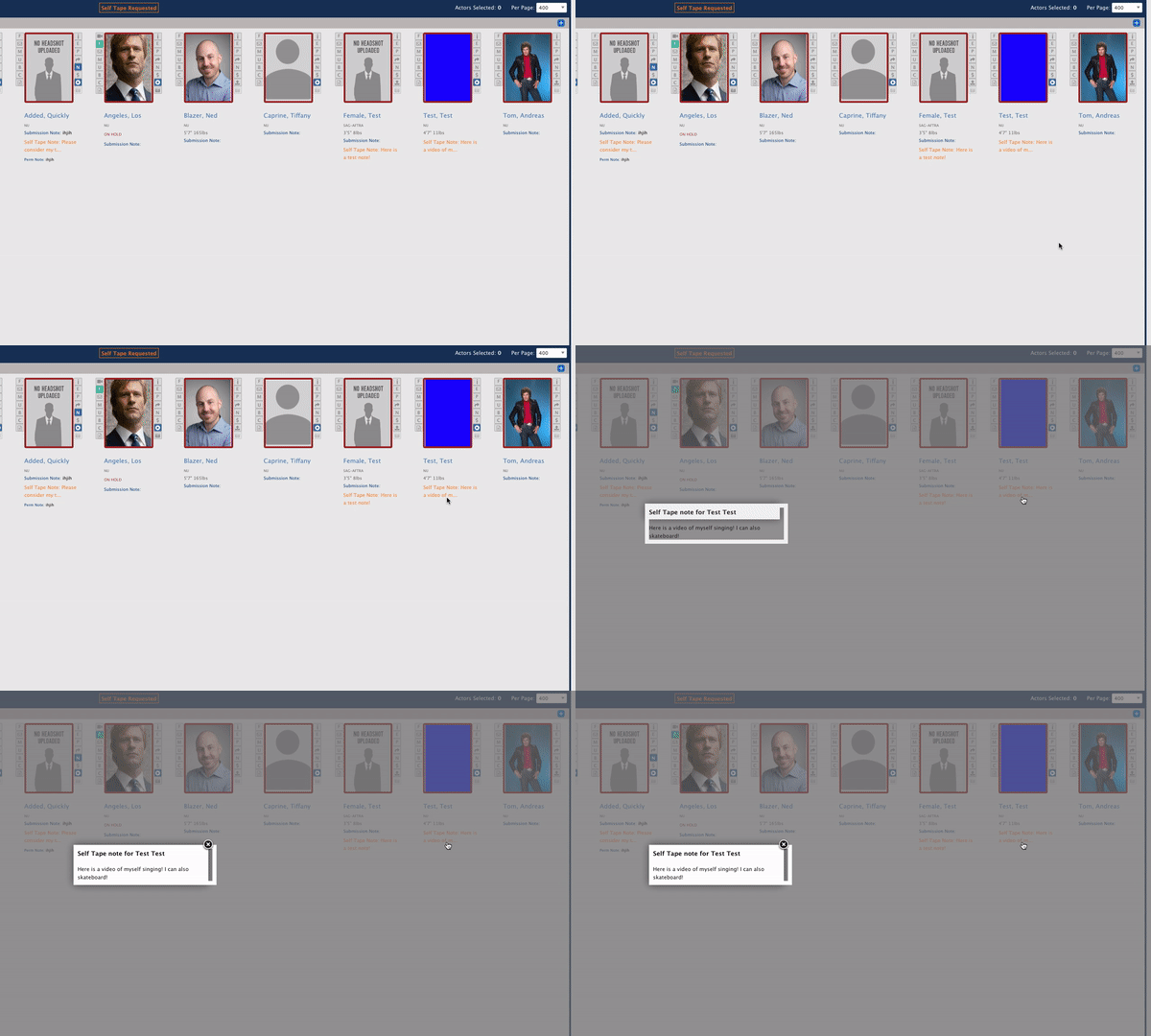
If a Talent adds a note with their self-tape submission, the note will appear in orange text under the talent’s profile.
To expand the note to read the full text, click on it.
Adding a Self-Tape Note
If you are uploading a self-tape for your talent, you can include a self-tape note directly from the selected page.
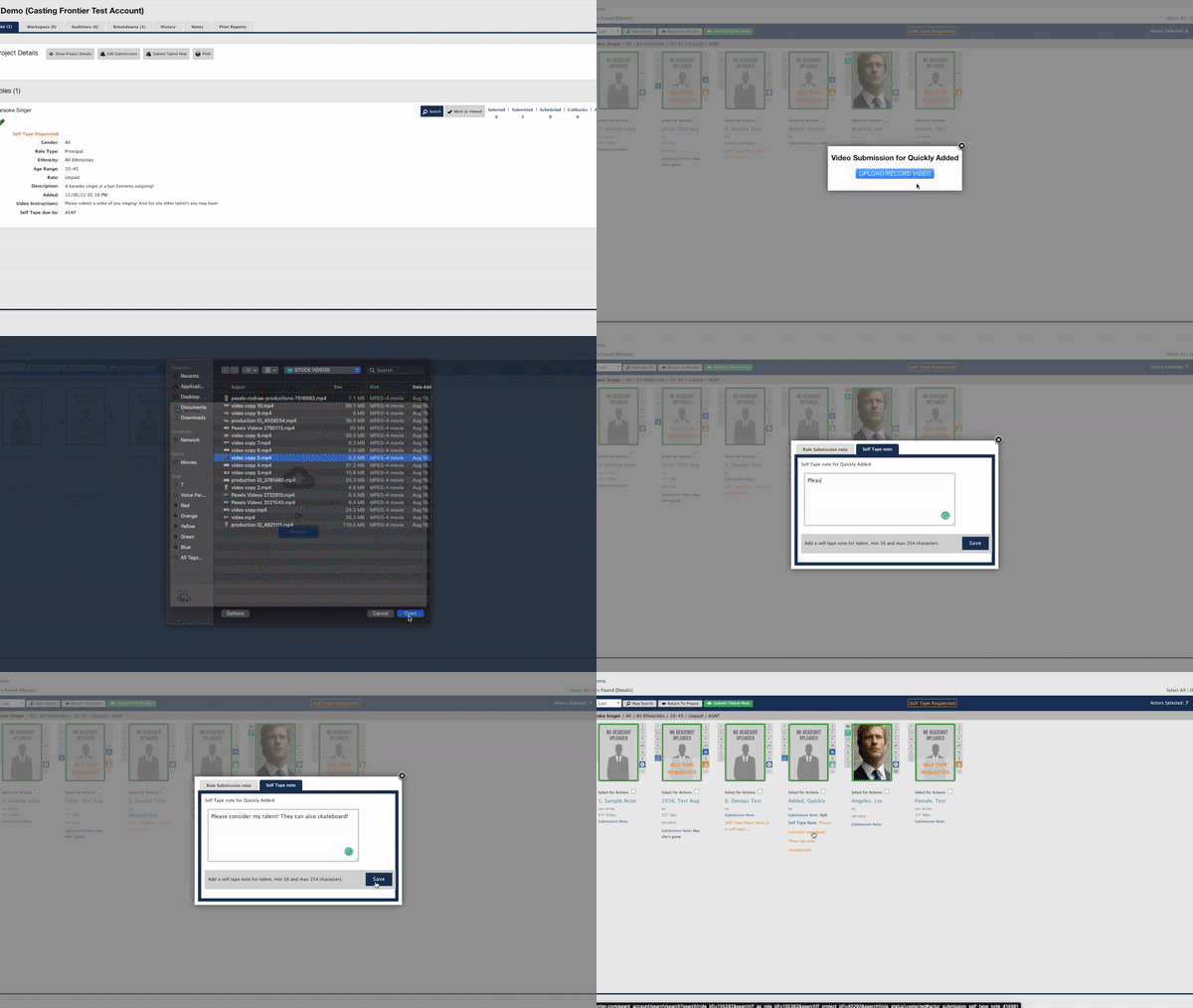
After uploading the self-tape clip on the selected page, locate the talent headshot.
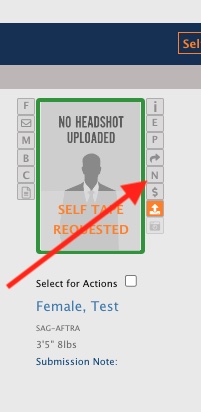
Select the “N” Icon located to the right of the talent headshot.
A window will appear. Toggle the option to Self Tape Note.
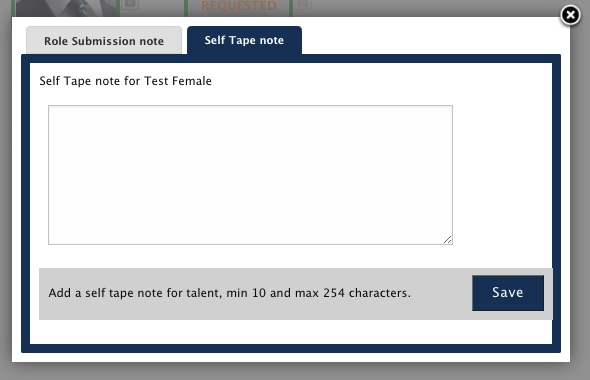
Enter your note and complete the submission. Once sent, Casting will see the note displayed under the talent's profile along with their video.