
TALENT REPRESENTATIVE: How do I Archive and view Archived projects?
Edited
This article explains how you can use the archive feature to move completed projects out of the main projects list and how to view or restore them later.
How to Archive a Project
Login to your account.
Find the project you want to archive.
In the Archive column on the right side of the page, select the checkbox associated with the project you would like to archive.
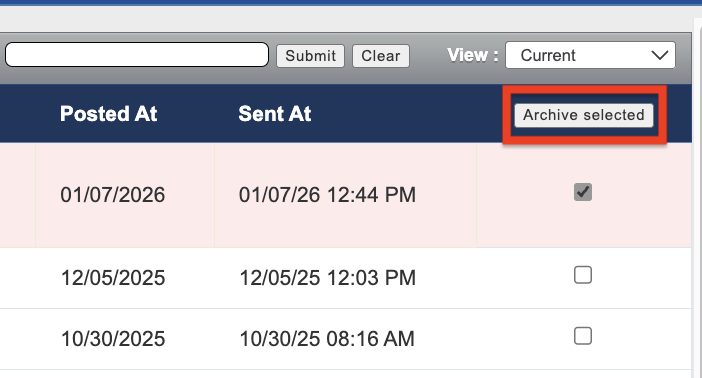
Click the Archive button within the Archive column title.
How to View Archived Projects
On the Projects page, look at the top right corner and click on the View drop-down menu.
Click the Archived option.
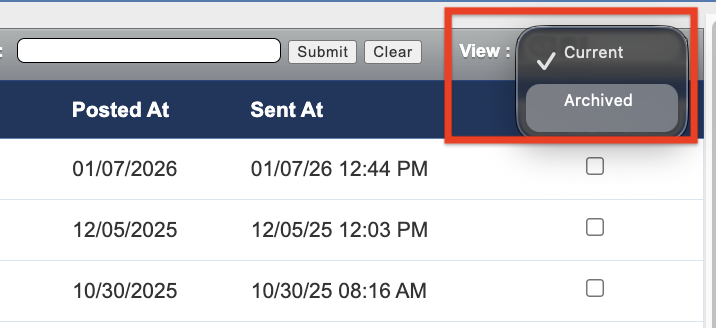
You are now viewing all of the projects that you have archived.
How to Unarchive a Project
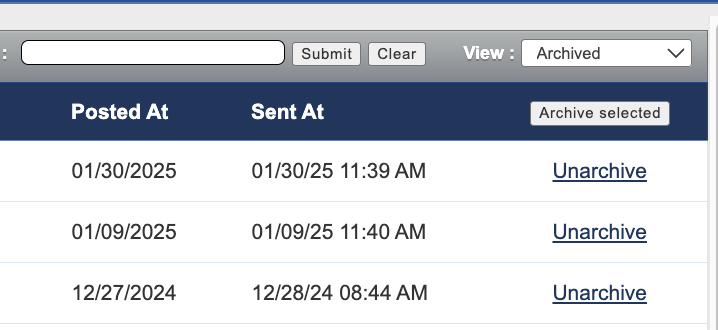
To move a project back to your active dashboard, simply choose the Unarchive button associated with the project while in the archived view.
Archive
Projects
Representative
Was this article helpful?
Sorry about that! Care to tell us more?