
TALENT: How Can I Manage Text Message Notifications?

Edited

Managing your alerts is key to making sure you never miss a beat when an audition or self-tape request comes through. This article will show you how to easily turn your text message notifications on or off so you can stay updated in the way that works best for you.


How to turn on Text Message Notifications

To turn on Text Message Notifications for your Talent account, please follow the below steps:

  1. Log into your account

  2. Click on Edit Profile on your Home page

    Dashboard navigation bar for a talent platform featuring buttons for Auditions, Avails, Self Tape Requests, Edit Profile, Edit Headshots, and More Options.

3. Open up the Contact Information menu on this page

Plus icon followed by the text "Contact Information" on a light gray background.

4. Click on Click to activate SMS Messages for auditions and self tape requests
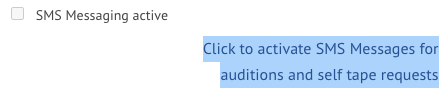
Checkbox labeled "SMS Messaging active" followed by a blue highlighted link that reads "Click to activate SMS Messages for auditions and self tape requests."

5. Enter the phone number you would like to receive text messages at and click Send Verification SMS
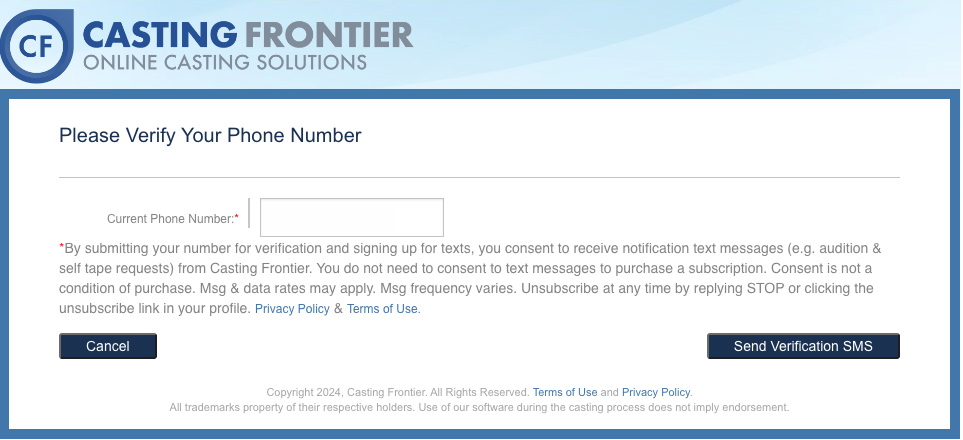
Phone verification screen. Includes a "Current Phone Number" input field, SMS consent terms, and a "Send Verification SMS" button.


6. Enter the 6 digit verification code that was texted to your phone, and then click the Confirm button
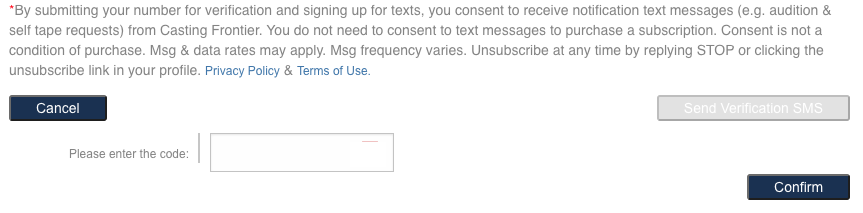
Verification screen for Casting Frontier featuring SMS consent terms, a code entry field, and "Cancel," "Send Verification SMS," and "Confirm" buttons.


How to turn off Text Message Notifications

To turn off Text Message Notifications for your Talent account, please follow the below steps:

  1. Log into your account

  2. Click on Edit Profile on your Home page

    "Navigation bar for a talent profile featuring buttons for Auditions, Avails, Self Tape Request, Edit Profile (highlighted in red), Edit Headshots, and More Options."

3. Open up the Contact Information menu on this page

To provide the most effective accessibility, the alt text for this image should focus on its function as a navigational or interactive element.

4. Click on Click here to stop receiving text messages from Casting Frontier
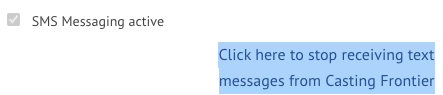
A checked box next to the text "SMS Messaging active," followed by a blue highlighted link that reads "Click here to stop receiving text messages from Casting Frontier."

5. In the message that appears, be sure to click Confirm

Was this article helpful?

Sorry about that! Care to tell us more?

Thanks for the feedback!

There was an issue submitting your feedback
Please check your connection and try again.